How to A/B Test Catalog Ad Designs on Meta

By Jacob Mølby, Partner ·
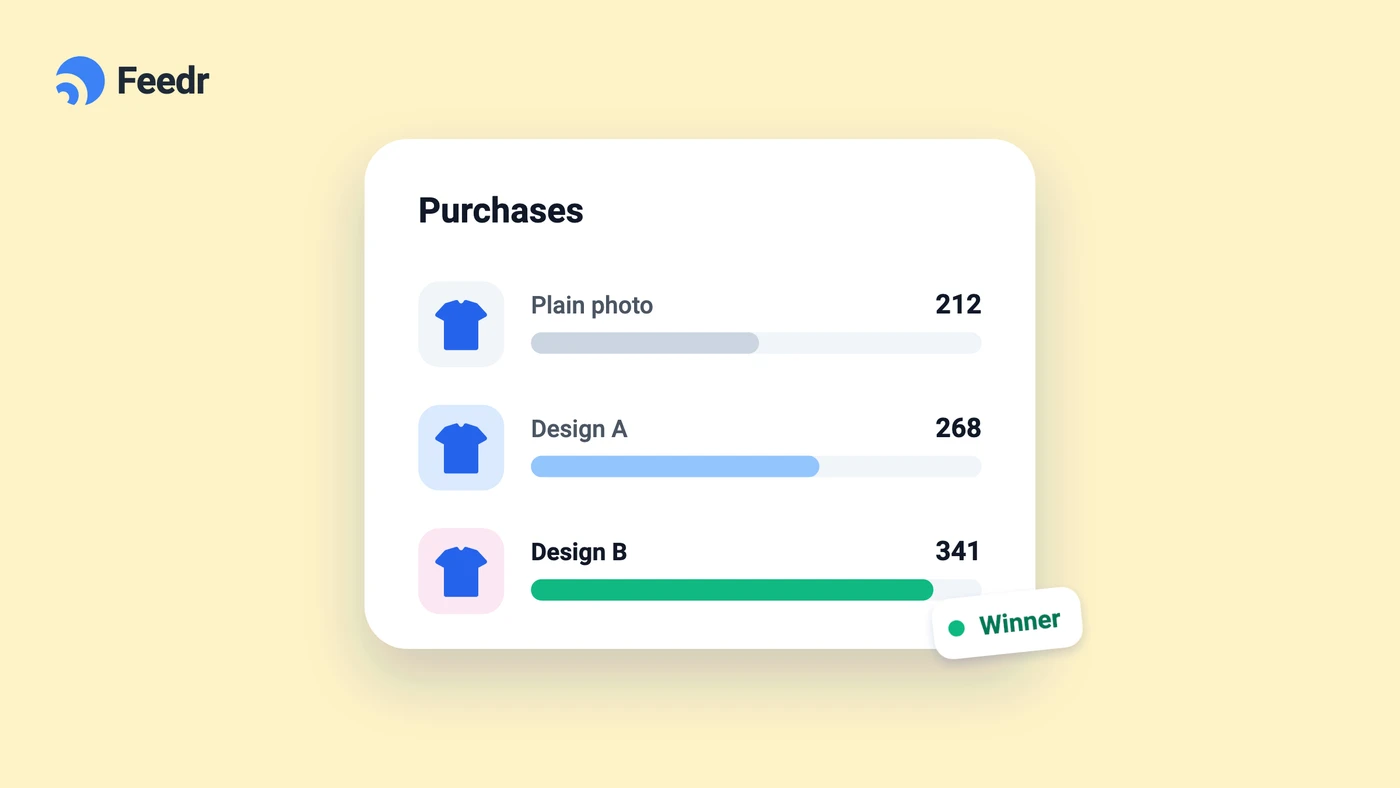
Testing a normal Meta ad is simple: upload two images, put them in an A/B test and see which one sells more. Catalog ads don't work like that. You don't upload the images. Meta takes them from your product catalog, so there's no obvious place to put a second design.
This guide covers why catalog ads are harder to test, the ways you can do it on Meta, and how to set up the test so the result means something.
Why catalog ads are harder to test
A catalog ad is built from your product data. Meta picks which products to show each person, and each product brings its own image from the catalog. That's what lets one ad cover thousands of products, but it also means the design isn't part of the ad. It lives in the catalog, and every ad that uses the catalog shows the same images.
To test two designs, you need two ads that show the same products, each with its own design. There are three ways to get there.
Option 1: A separate catalog for each design
This works for everyone. Make a copy of your feed where each product's image link points to the designed image instead of the plain photo, load it into a second catalog, and run one ad on each catalog.
It has two problems. The first is the work: you need a designed image for every product, kept up to date when prices and products change, and a full catalog to maintain for every design you want to test.
The second is that the results are harder to trust. Your main catalog has history that a new catalog doesn't, so the old catalog can win just for being older. You end up testing the catalogs as much as the designs.
Option 2: Meta's image templates
Meta also has a basic template builder for catalog ads in Commerce Manager. It's only available to some businesses, and your designs are limited to what Meta's builder offers.
Option 3: Design variants in one catalog
Some feed tools, Feedr among them, keep several designs in one catalog. Each product gets an image for every design, and each ad chooses which design it shows. The catalog, the products and the history stay the same, so only the design changes.
This is the setup that gives the cleanest test, and once it's in place, adding another design to the next test is a few clicks.
In Feedr, this is called Template Variants. See how to set it up in our guide to testing templates with Template Variants →
How to set up a fair test
Whichever option you use, the test itself is set up the same way in Ads Manager.
Start with new ads. Create a new campaign just for the test, with Sales as the objective, and give it one ad set per design with one ad in each. Don't add a new design to a campaign that's already running. The old ads have a head start, because Meta has already learned who to show them to.
Keep everything except the design the same. Same products, same audience, same budget, same placements and the same ad text. If two things change at once, you can't tell which one made the difference.
Include the plain photo. Keep one version without any design. If your designs don't beat the plain product photo, it's better to know that before you spend more time on them.
Stop Meta from changing your designs. Advantage+ creative for catalog lets Meta change your ads on its own. It can hide the price or add overlays with information from your catalog. Both change what shoppers see, so the test no longer compares only your designs. Turn them off in every version.
Use Meta's A/B test. Select the ad sets and click A/B test. Meta splits the audience so each person only sees one version, which is what makes the comparison fair. Then choose the result that decides the winner. For an online store, that's usually cost per purchase.
Give it time. Let the test run to the end before you decide, and don't edit the ads while it runs, since bigger edits send ads back into Meta's learning phase. A few days rarely brings enough purchases to trust the result. Plan for at least two weeks, and longer if each version gets only a handful of purchases.
What to test
Test one idea at a time, so you know what made the difference. Some places to start:
- Price on the image or no price at all.
- A sale badge with the discount in percent, or the amount saved.
- A brand panel with your logo and colors, or the clean product photo.
- A customer review or star rating next to the product.
- The product on your own background instead of the original photo.
- A free shipping message on products above your free shipping limit.
Start with big differences. Two designs that look almost the same need far more purchases before one of them clearly wins.
Reading the results
When the test ends, Meta shows which version won on the result you chose, and how likely it is that you'd get the same winner if you ran the test again. If that chance is low, the designs performed about the same, and the test didn't find a winner.
When there is a winner, think about why. Was it the price, the brand colors, the review? That tells you what your shoppers respond to, and you can build on it in your next design. Then use the winner in all your ads and test your next idea against it.
Testing designs with Feedr
Feedr gives you option 3. You design your templates in Feedr's editor, with prices, sale badges and other details that come from your product data, so the image always matches the product. You add a variant for each design to your Meta catalog, and pick the variant for each ad in Feedr or right inside Ads Manager with the Feedr Chrome extension. Feedr also tells you when an ad can't show its variant and how to fix it.
See what you can put on your images with catalog ad templates →
Follow the step by step guide to testing templates with Template Variants →
If you have questions about testing your catalog ads, ask us in the live chat on the website.