Why Your Feedr Templates Don't Show in Meta Ads (And How to Fix It on Shopify)

By Jacob Mølby, Partner ·
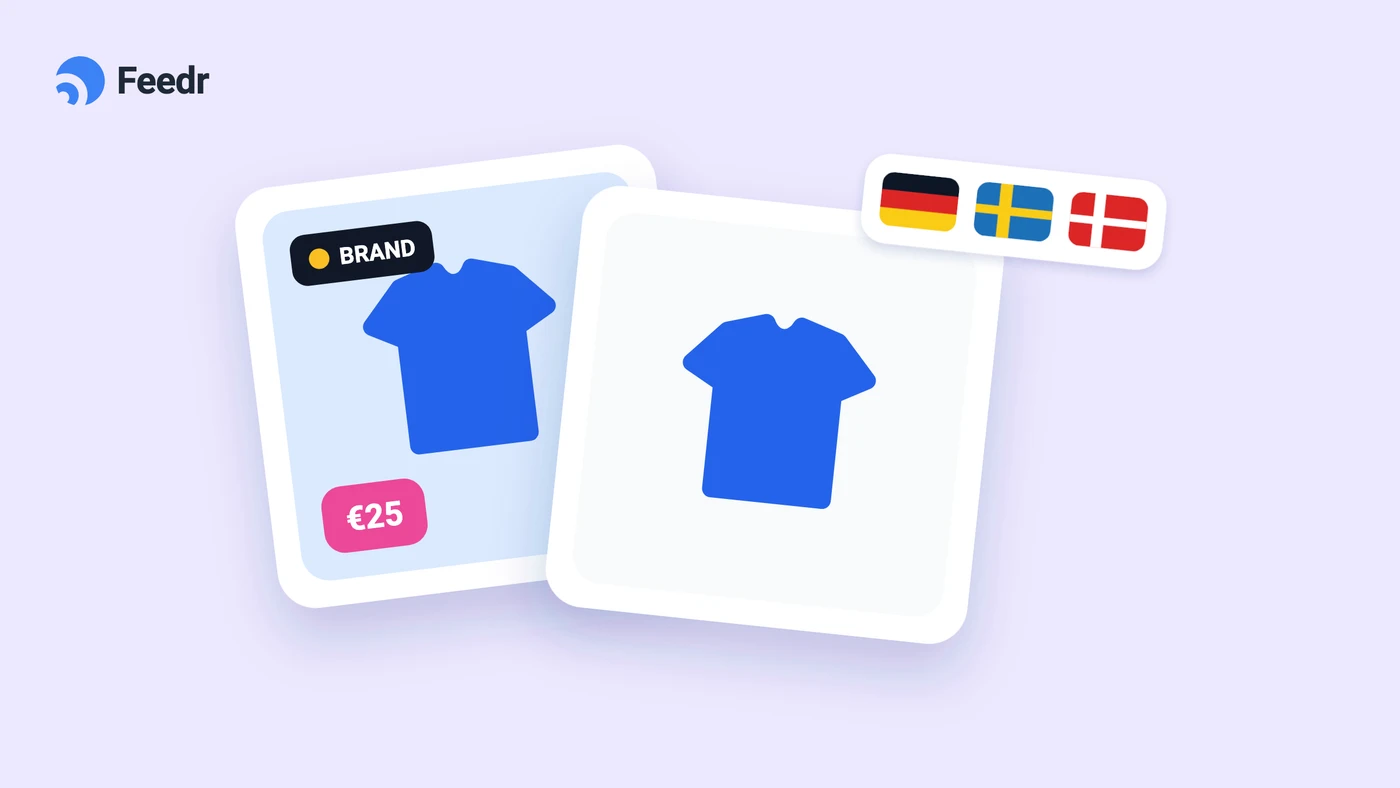
You design a template in Feedr, connect the feed to your Meta catalog and give Feedr's images priority. In Commerce Manager, every product shows the new design. But your ads still show the plain product photos.
Nothing is broken in Feedr, and nothing in Commerce Manager points to a problem. If your store runs on Shopify, the images in your ads most likely come from somewhere you can't easily see: Shopify sends its own version of every product for each country and language, and Meta quietly uses those instead.
This post explains where those images come from, why Meta makes them so hard to find, and how to get your templates back in your ads.
What Shopify sends to your Meta catalog
When you connect your store to Meta with the Facebook and Instagram by Meta app in Shopify, Shopify keeps your catalog filled with your products. That part is what you'd expect.
But if your store sells in more than one country or language, Shopify also sends a local version of each product for every one of them: a translated title, a description, a link to the right version of your store, and an image. Meta calls these country and language overrides.
When someone in Germany scrolls past your ad, Meta picks the German version of the product. That version carries the image Shopify sent, which is the plain photo from your store. Your Feedr template never gets a chance to appear.
Why it's so hard to spot
This is where Meta makes life difficult.
The overrides always win. Meta lets you choose which source a catalog should prefer for images. You can put Feedr at the top, and Commerce Manager will happily show your templates. But that choice only applies to the main version of the product. The country and language versions sit on top of it, and Meta uses them whenever they exist.
There is no way to turn them off. As long as Shopify syncs your full product data, it sends the overrides too. Meta has no setting that says "keep my Shopify sync, but ignore its images".
The thumbnails you see are not the ones shoppers see. All over Meta's tools, your products show the main image, which is the one with your template. If Shopify has sent an override for every market you sell in, that image may never be shown to a single shopper. Everything looks right until you open an ad preview.
You can find the overrides in Commerce Manager if you know exactly where to look, but very few people do. Most merchants only find out when they wonder why their ads look nothing like their catalog.
How to check if it affects you
Not every Shopify store has these overrides. It depends on how the store and its markets are set up.
The quickest way to know is to let Feedr check. When you connect a feed to a Meta catalog, Feedr looks for Shopify's country and language images and tells you if it finds any. For feeds that are already connected, you'll see the result on the feed card, and the catalog's Products tab shows how many countries and languages Shopify replaces each product's image in.
You can also compare for yourself. Open a product in Commerce Manager, then preview an ad with the same product in Ads Manager. If Commerce Manager shows your template and the ad shows the plain photo, the overrides are the likely cause.
How to get your templates back
Fixing it takes three steps. You do the first one in Meta, and Feedr takes care of the rest.
1. Let Shopify only update price and stock
In Commerce Manager, open the settings for the Shopify data source in your catalog and choose Only updating price, availability and quantity of existing products. Then save.
Shopify keeps your prices and stock up to date, so your ads never advertise the wrong price or a sold-out product. What it stops doing is sending full product data, and with it the country and language images. Feedr notices when the setting has changed, so you don't need to confirm anything.
Your tracking isn't affected. The setting only changes what Shopify sends to your catalog, so the Facebook and Instagram by Meta app keeps handling your Meta Pixel just like before. That's often the main reason to install the app in the first place, and you keep it.
2. Make Feedr the main source of your products
Once Shopify only updates price and stock, your catalog needs another source for everything else: titles, descriptions, links and images. That source is your Feedr feed.
If your Feedr feed was set up as a supplementary source, choose Remove Shopify image overrides on the feed card and Feedr switches it to the main source for you. You don't have to rebuild anything in Commerce Manager.
3. Remove the images Shopify already sent
Changing the setting stops new overrides, but the ones already in your catalog stay there. Meta has no button for removing them, so Feedr finds them and clears them out of your catalog for you.
When it's done, Feedr checks a sample of your products in Meta to confirm the overrides are gone. On a large catalog, the whole process can take 10 minutes or more. It runs in the background, so you can close the window and come back later.
After that, it can take a while before Meta updates all your ads.
Can't change the Shopify setting right now?
Sometimes changing the sync isn't your call, or it has to wait for the right moment. In that case, Feedr can remove the overrides once without the setting change. Your templates show up again, but Shopify may send its images back on its next sync. We only recommend it as a stopgap.
Two things to know before you start
Keep the Shopify setting as it is. If someone switches the Shopify sync back to full product data, Shopify starts sending its country and language images again. When Feedr checks the catalog, the feed card warns you if that has happened.
Shopify's translations go too. The overrides hold more than images. They also carry the translated titles, descriptions and links Shopify sent for each market, so those are removed along with the images.
If you sell in several languages, Feedr can send those translations instead. With country and language feeds, each market gets its own titles, descriptions and links from Feedr. As a bonus, you control the design per market too, so your German ads can have a German price badge.
Frequently asked questions
Why doesn't it help to give Feedr priority for images?
That priority only decides the image for the main version of each product. Shopify's country and language versions have their own images, and Meta always uses those for shoppers in those markets.
Will Shopify still update my prices and stock?
Yes. With the sync set to only update price, availability and quantity, Shopify keeps doing exactly that. It just stops sending titles, descriptions and images.
Do I have to uninstall the Shopify app?
No, and you shouldn't. The Facebook and Instagram by Meta app keeps handling your Meta Pixel, so your purchases and other events are still tracked. You only change what it sends to your catalog.
Why does Feedr need to be the main source?
Once Shopify only sends price and stock, Meta needs another source with the full product data. If your Feedr feed was only adding images to Shopify's products, there would be nothing left for it to add to.
Does this affect stores that only sell in one country?
Usually not. The overrides come from Shopify's country and language versions of your products, so stores selling in several markets are the most likely to have them. Feedr checks either way when you connect a feed.
Your catalog, your ads
The frustrating part of this problem is that everything looks fine until the ads go live. Your catalog shows your designs, and the ads that reach your customers don't.
If your Feedr templates aren't showing up in your Meta ads, check the feed card in Feedr first. If Shopify's overrides are the cause, you'll have your templates back in your ads after one setting change in Meta and a few clicks in Feedr.