What's New in Feedr - August and September 2026

By Jacob Mølby, Partner ·

This round is mostly about templates and images. Text elements have been rebuilt, the background removal repair tool is now a proper editor, and image elements can pull their image straight from your product data. On the feed side, there is a new OpenAI channel for ChatGPT Ads and a set of mutations for structured data.
Rich text in templates
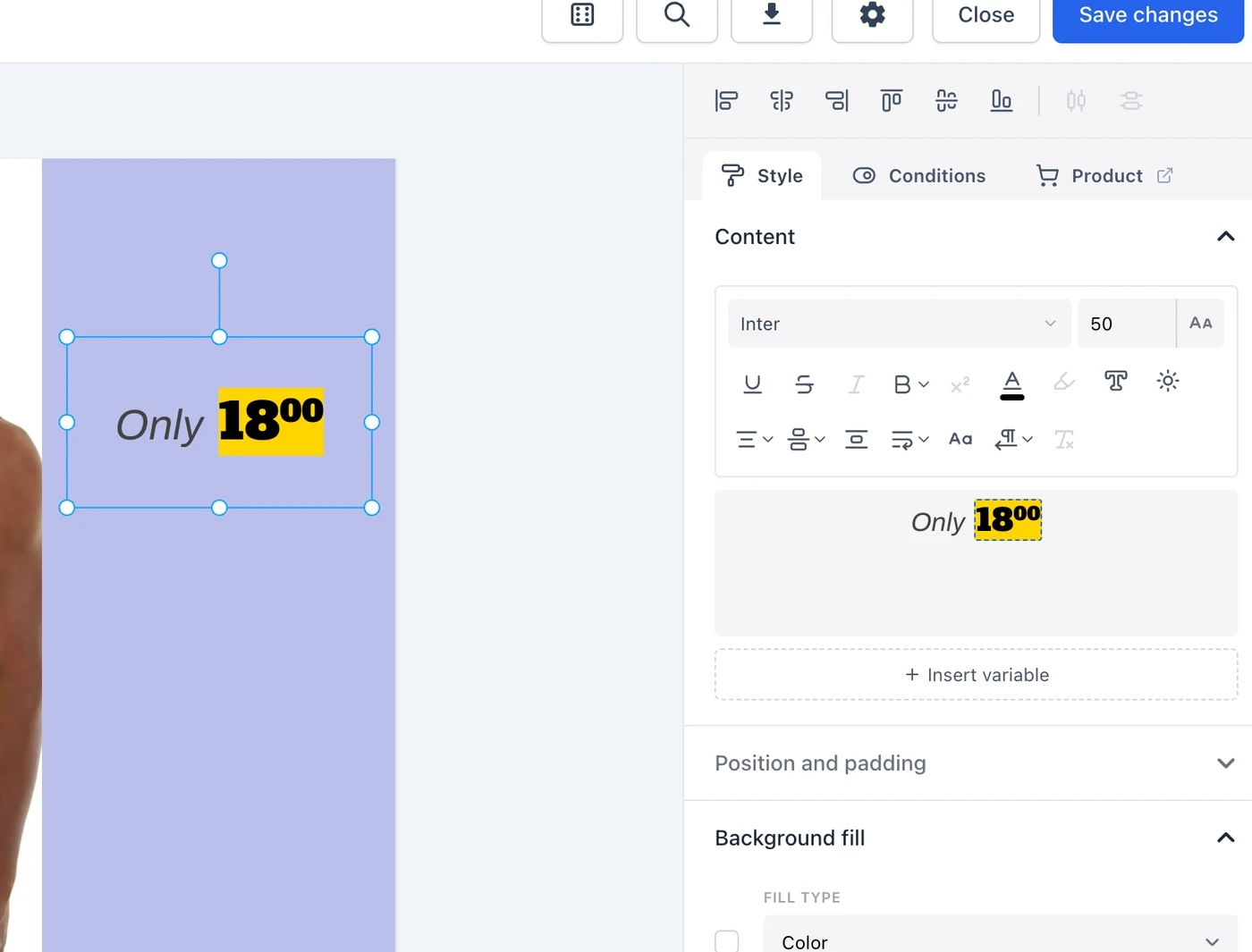
Text elements have been rebuilt. Styling now attaches to the text you select instead of to the whole block, so one element can hold several fonts, sizes, colors and product variables at once.
The case this solves: a price row with a struck-through before-price in grey next to the current price in bold red. That used to mean two or three text elements positioned by hand, which fell apart as soon as a product had a longer price and the elements no longer lined up. Now it is one element that reflows on its own.
The editor is WYSIWYG. Variables appear as chips showing the real value for your preview product, styled the way they will render, so you can see the layout while you write instead of checking the canvas after every change. The toolbar follows your selection: highlight some text and the change applies there, click away and it sets the element default.
A few things that came with it:
- Number formatting per variable. Rounding, decimals and raised decimals are set on the chip, not the element. Two prices in the same block can be formatted differently.
- Auto text size. The element solves for the largest size that fits the box, and every span scales proportionally. Useful for anything with unpredictable length, like product titles.
- More per-selection styling. Gradients, text outline, highlight, letter spacing, and a text shadow that is separate from the shadow the element casts.
- Text direction, for right-to-left scripts.
Old text elements keep working and stay editable, but new features land on rich text only. The Text button in the elements bar now always adds a rich text element.
Smarter guides and alignment
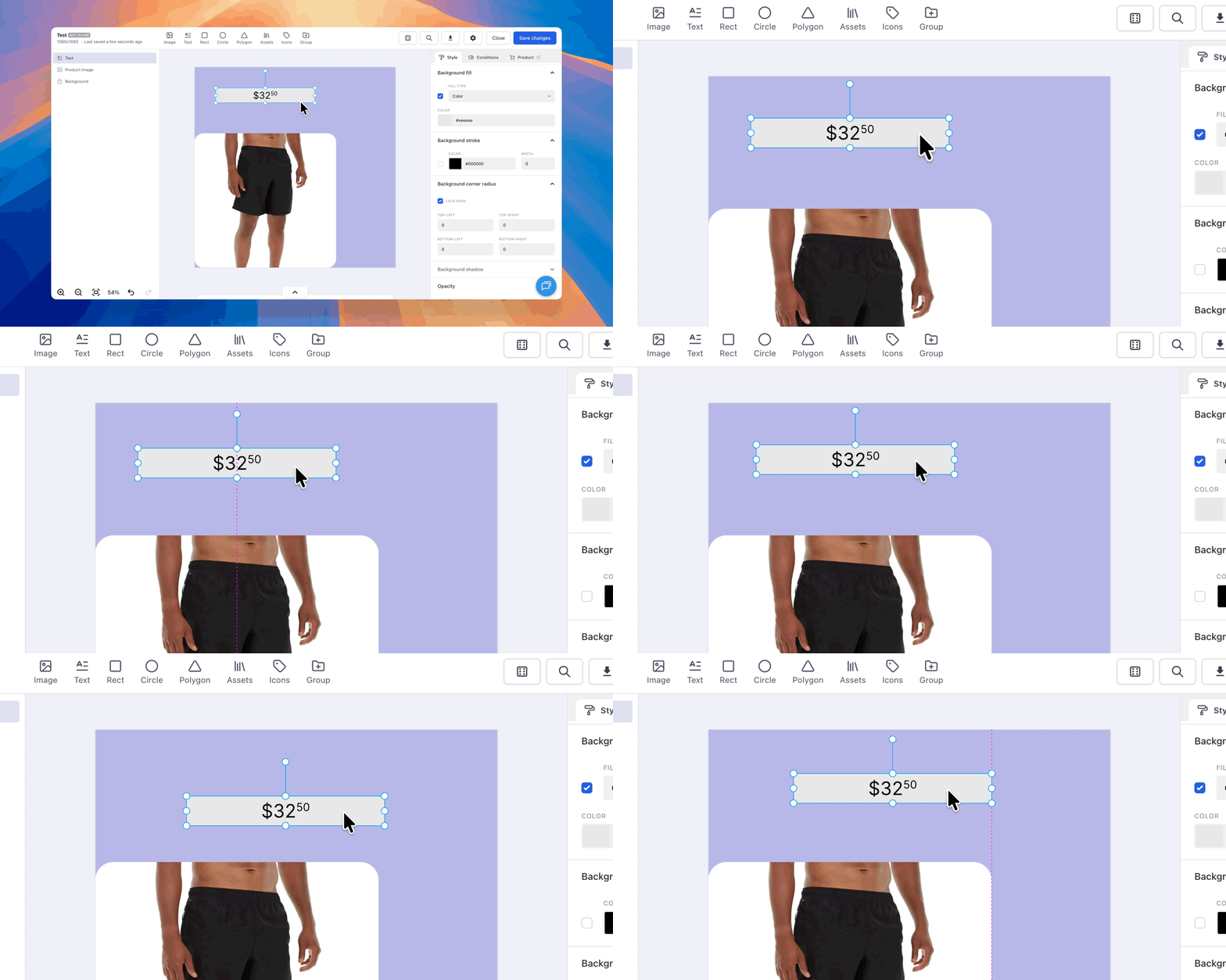
The editor now snaps to other elements, not just to the canvas edges and center cross. Drag something and its edges and centers snap to the edges and centers of everything else on the canvas, with a dashed guide showing what it caught. Resizing snaps the same way.
Hidden elements are skipped, so you never snap to something a display condition will remove from the render.
There is also an alignment strip in the attributes panel. Select two or more elements and you get align left, center, right, top, middle and bottom against the selection's bounding box. Select three or more and distribute horizontally and vertically become available, which keeps the outer elements in place and evens out the gaps between the rest. With one element selected the same buttons align it to the canvas, which is the fastest way to center something.
Each align or distribute is a single undo step.
Read more about aligning elements →
OpenAI channel
You can now create a ChatGPT product feed with the new OpenAI channel and advertise your products in ChatGPT Ads.
The feed is generated as CSV in the format OpenAI expects. The connection guide on the feed page walks you through it: map seller_name, the one field that describes your store rather than a product, add the feed URL in ChatGPT Ads Manager, and the guide confirms the connection once OpenAI fetches it for the first time.
Templates work on this channel too, mapped to image_url and additional_image_urls, so you can send OpenAI the same designed images you send everywhere else.
Read more about ChatGPT Ads for online stores →
Read more about creating an OpenAI feed →
A new repair tool for background removal
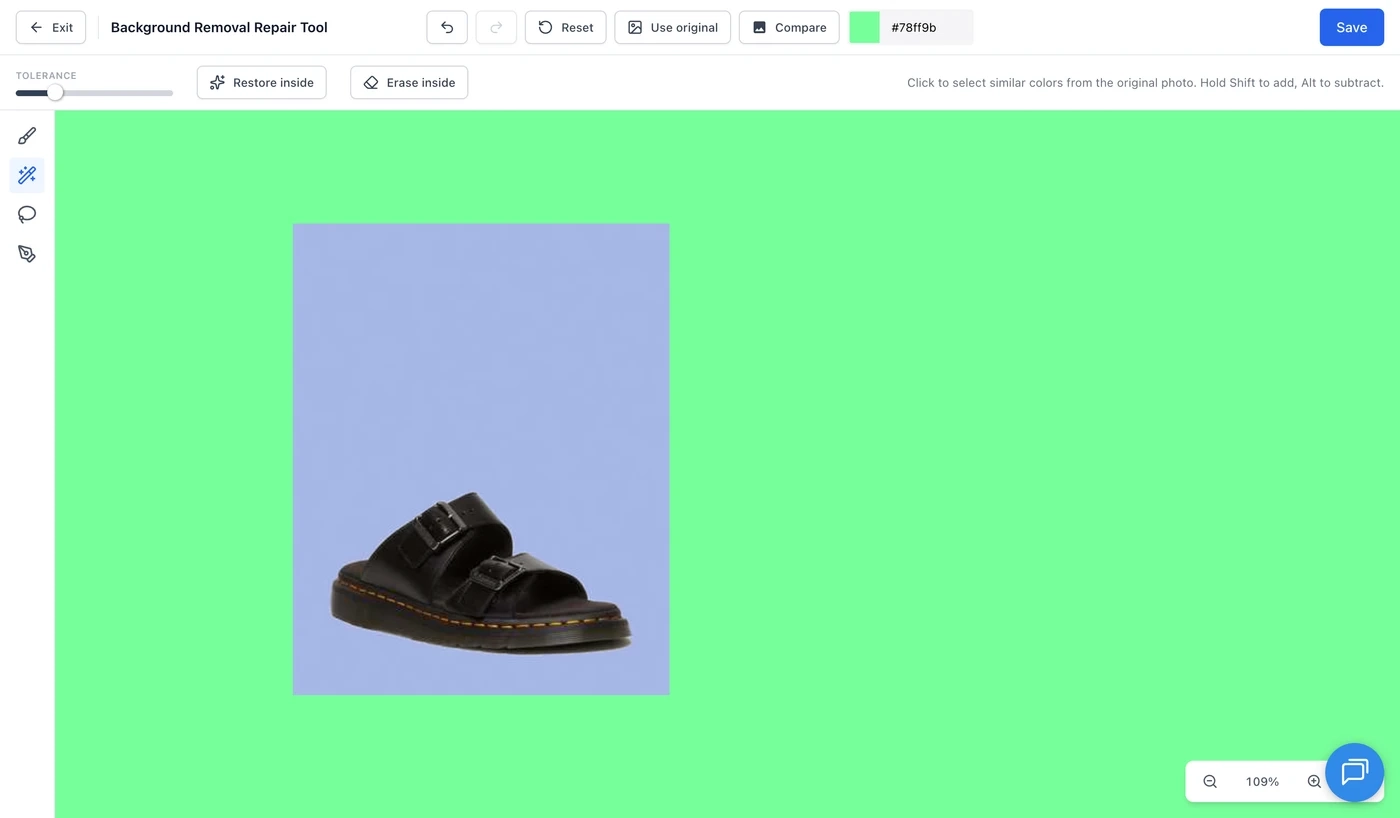
The repair tool was a single hard-edged brush on a fixed 800px canvas. Fine for touching up an edge, not so fine for the fixes you actually need: background left inside a mug handle, a white label cut out of a white bottle, or printed box art the model decided was a separate object.
It is now a full-screen editor with zoom and pan.
Alongside a soft-edged brush (Shift+click draws a straight line), there are three selection tools:
- Magic wand. Click a region and it selects the connected area of similar color. Adjust the tolerance and the selection updates in place, no re-click needed.
- Lasso. Draw a smooth freehand shape.
- Pen. Click to place points for precise outlines.
All three build the same selection. Shift adds to it, Alt subtracts, and once it looks right you Restore or Erase inside it in one go. So the mug handle is a single wand click and Erase, and the bottle label is a lasso and Restore.
There is also a compare toggle to overlay the original, Use original to restore the whole photo as an undoable step, and keyboard shortcuts for the common actions.
Images from your product data
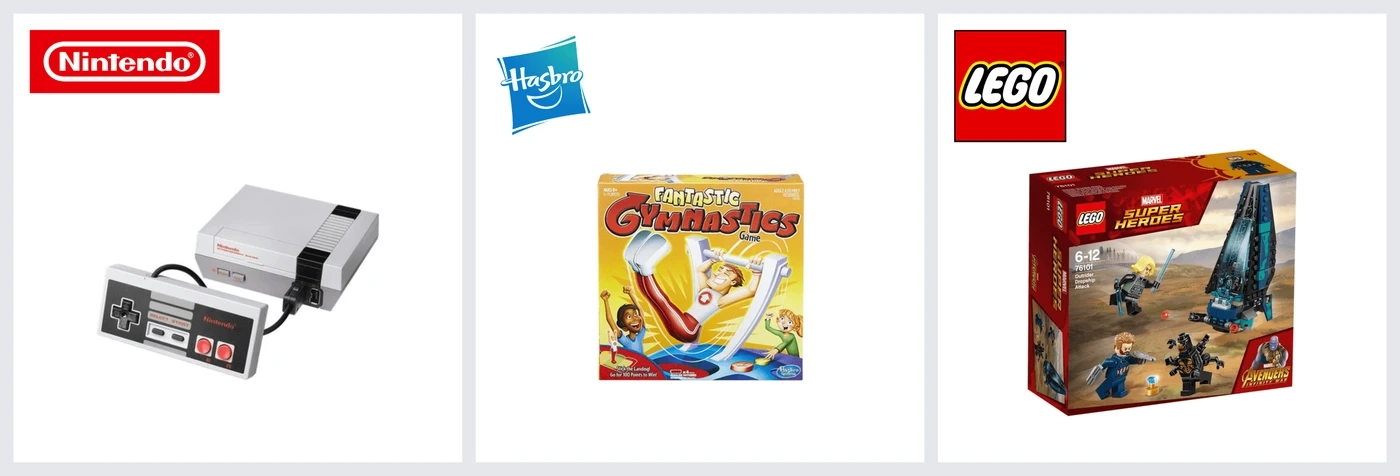
Image elements can now read their image from a field in your product data. Pick "Image from a field" in the elements bar, choose the field, and each product shows its own brand logo, badge or banner. One template instead of one per brand.
The editor shows the image for the product you are previewing, so switching products updates it. If a product has no value in the field, or the image can't be loaded, the element is simply left out and the rest of the template renders as normal.
Read more about images from product data →
Working with lists of objects
Some product data is structured: a size chart, a list of variants with a price each, a set of videos with a URL and a name. Mutations can now work with that data directly. There is a new JSON category with Parse JSON, Find object, Filter objects, Sort objects, Pluck attribute, Count objects, Extract attribute and Stringify.
As an example, take a size chart stored as a list of objects. Find the object where `size` matches the product's size, then extract `chest`, and a size M product gets its own chest measurement in the feed.
On the same theme, Shopify imports now include product videos. Each product gets a `videos` field holding a list of objects with the video URL, alt text, dimensions, duration and a thumbnail, ready to pick apart with the new mutations.
Read more about lists of objects →
Meta ads assignment
Assigning template variants to Meta ads got easier to work with on large accounts:
- Campaigns and ad sets collapse and expand, so you are not scrolling through everything at once.
- A toggle to show only catalog ads, since those are usually the only ones you are assigning to.
- Ad IDs are shown, and non-catalog ads can be opened straight in Ads Manager.
- A button to refetch all campaigns, for when you have just changed something on the Meta side.
- Deselecting a campaign no longer requires opening the modal again.
- Ad order is now fixed, so the list stops reshuffling between loads.
- The "Add variant" button is also more prominent, because it was too easy to miss.
Smaller improvements and fixes
- The feed list shows how many products each feed contains.
- Space is now available as a thousands separator, for prices like
1 000,00. It works in rich text variables and in the Format mutation. - Google Sheet mutations take the sheet URL directly, instead of a separate ID and GID.
- A feed can be connected to a Meta catalog as an additional primary source, alongside the primary sources already there.
- Opening a link to a shop on another team switches you to that team automatically.
- Fixed a performance problem in the template editor that made it sluggish on heavier templates.
- The unsaved-changes indicator is more accurate, particularly around conditions and after undo.
- Fixed zoom not updating reliably in the editor.
- Fixed if/else rules not being copied when duplicating a template variant.
- Better handling of errors coming back from Meta.
That's it
More on the way. If something is not working the way you expect, or you want to tell us what to build next, use the live chat on the site.